

How to Score Booths 📶
ZAPP Onsite URL: onsite.zapplication.org
Enter the username and password provided by the event administrator. Once logged in, select the event you are scoring.
Sort the booths by number, artists’ first or last names, or by medium category (alphabetically).
Filter the list to show only unscored booths or flagged booths.
Enter a booth number or artist name into the search bar to find a specific booth.
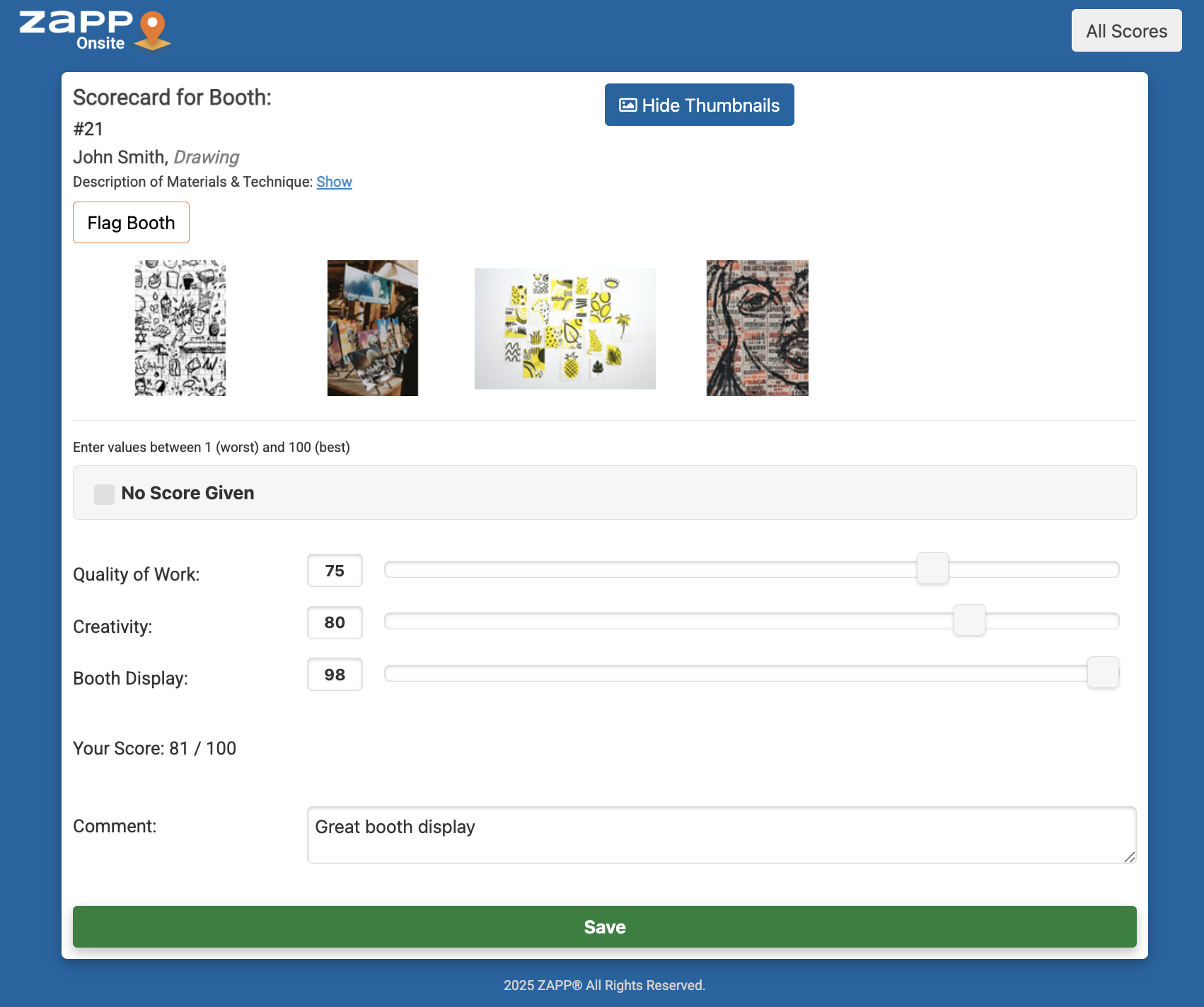
Review the artist's booth and artwork information.
Click Show Thumbnails to see the images submitted with the artist’s application.
Click Show next to Description of Materials and Technique to learn more about the artist's work.
Click Flag Booth if you need to return to the booth later.
Score the booth by dragging the sliding bar to the desired number, or enter your score inside the text box on the left. Add comments, if desired.
If you cannot give a score due to a conflict of interest or the artist is absent, click No Score Given.
Click Save 💾 to save your scores.
⚡ TIP: Once all scores have been submitted, filter the list by Unscored Only to double-check that you have scored everyone.
How to Score Offline 🛜
ZAPP Onsite works best if you have consistent access to cellular data or a stable Wi-Fi connection. If internet access is an issue on the festival grounds, you can score in offline mode.
ZAPP Onsite URL: onsite.zapplication.org
This ensures all booths are loaded.
Once all booths are loaded, put your device into Airplane Mode ✈️ .
Scores will show as Saved on your device until you sync them with ZAPP.
Once you have are finished scoring and have a stable cellular data or Wi-Fi connection again, turn off Airplane Mode.
Click Submit Scores and then Submit All.
The syncing process may take several minutes, depending on how many scores are submitted. Your scores will be synced with ZAPP and will show as Submitted.